Token with the authorization code flow
Welcome, developer! In this section we will learn how to generate our first Access Token! with Authorization Code to consume the BTG PACTUAL EMPRESAS APIs! We hope you have already created your first Application so you can follow along properly!
The Access Token obtained through the Auth Code Flow grants access to the information the user agrees to share, so it is the token REQUIRED to consume the banking APIs!
This tutorial is valid for both the Sandbox and Production environments, so don't worry if your Application hasn't been verified yet.
Security
Always remember that some information is confidential and will never be needed for us to resolve any issues you may encounter. Therefore, it is extremely important that you always mask information such as the Secret, Access Token...
All sensitive information in this tutorial is masked.
Developer Area
Our first stop is the Developer Area, where you are expected to already have an application created as described in Application Creation to consume the API service.
With your application already created, you should see an application similar to this one among your applications:

Here we will navigate to the three dots on the right and click them:

When you click details, you will find the following page:
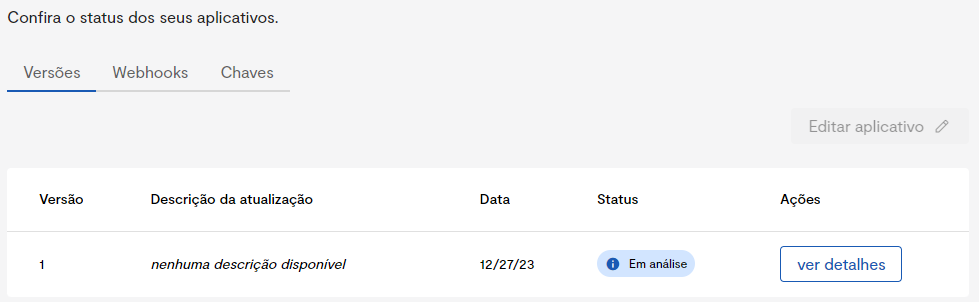
A few things matter to us at this first stage of development:
- Keys: This is where your application's Client Id and Client Secret are.
- Versions: This is where you see the edits made to your application and the details of its current version. Clicking "view details" on the current version, you will find a summary of your application's state. Here we want the redirect URI we registered and the Scopes we selected during creation.
Scopes
The openid scope is required, but the others you must choose according to your system's needs, since they define which APIs your system will have access to.
Having defined our scopes and our redirect URI, let's start preparing our environment to make our requests!
Authentication flows
It is worth visiting our pages about the Flows we will use here so you better understand which protocols are involved, but basically our servers use OAuth 2.0!
Postman
Many tools can be used, from more generic ones like Insomnia and Postman to specific ones like OAuth tools. Here in the tutorial, I will use the Postman extension for VS Code, but the same process can be done in any of these tools!
Configuring the environment
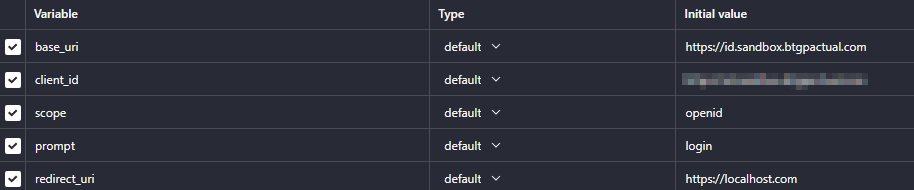
Let's create environment variables to make our process easier and, at the same time, make it easier to see which information is going where. I chose to create an environment called "Tutorial-Access_token_ambiente" and there I created the following variables:

And I filled them in as follows:
- base_uri: https://id.sandbox.btgpactual.com
- client_id: Client Id found in the Developer Area
- scope: scopes I selected in the Developer Area, in this case
openid - prompt: by default I kept
login - redirect_uri: https://localhost.com our fictitious URI
Our environment then looked like this:
With that, we can start our flow!
Authorization code
This is the first step toward obtaining our much-desired Access Token and finally accessing the APIs. In this step we send some information to the authentication server and it returns an authorization code for it!
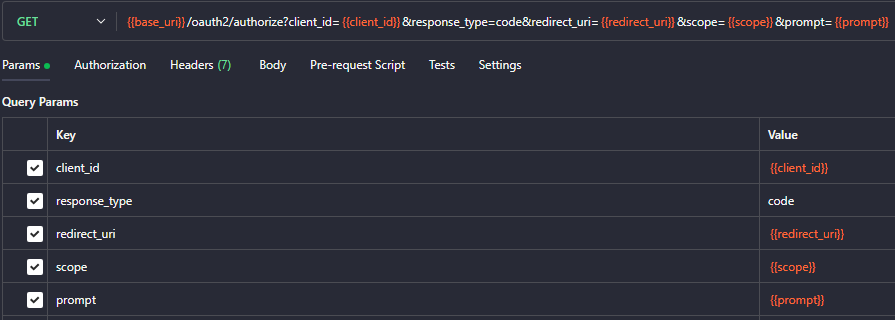
In Postman, we build the URI according to the one described on our page about the Authorization Code flow, and it looks like this:
After that, we grab the cURL by clicking "code":
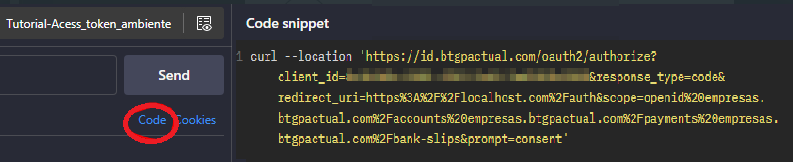
And we will use the URL in the browser, as if you had clicked a link or a button in your system. This way, we start the access grant flow:
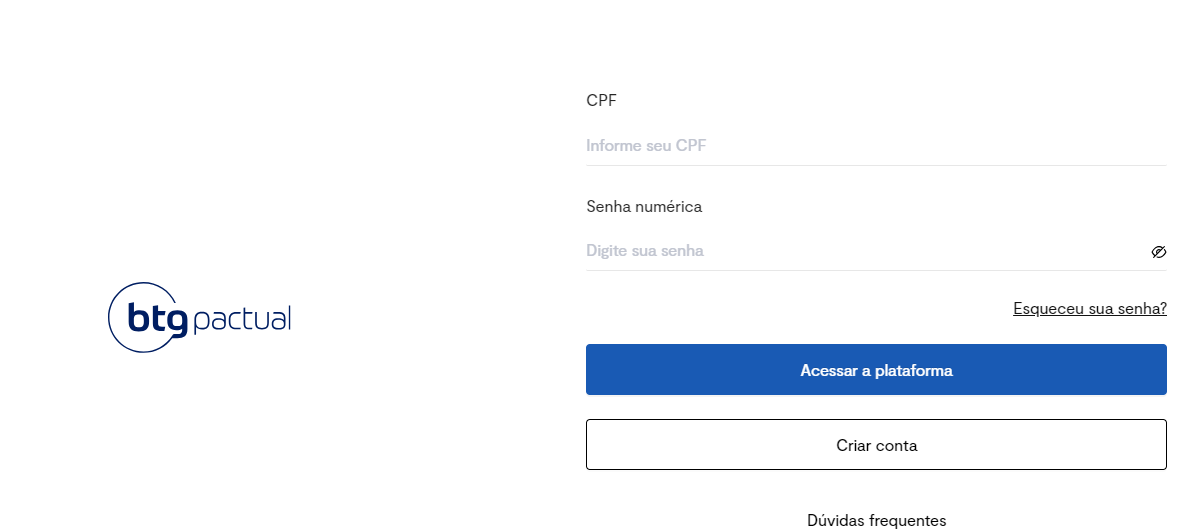
Just log in with your BTG Pactual Empresas account.
This is where the scopes you included in the flow appear. For each scope added, a corresponding item appears in the flow. Here, notice that we have the Open Id for the openId scope and an additional scope we included just to demonstrate how it works when we have more than one scope.
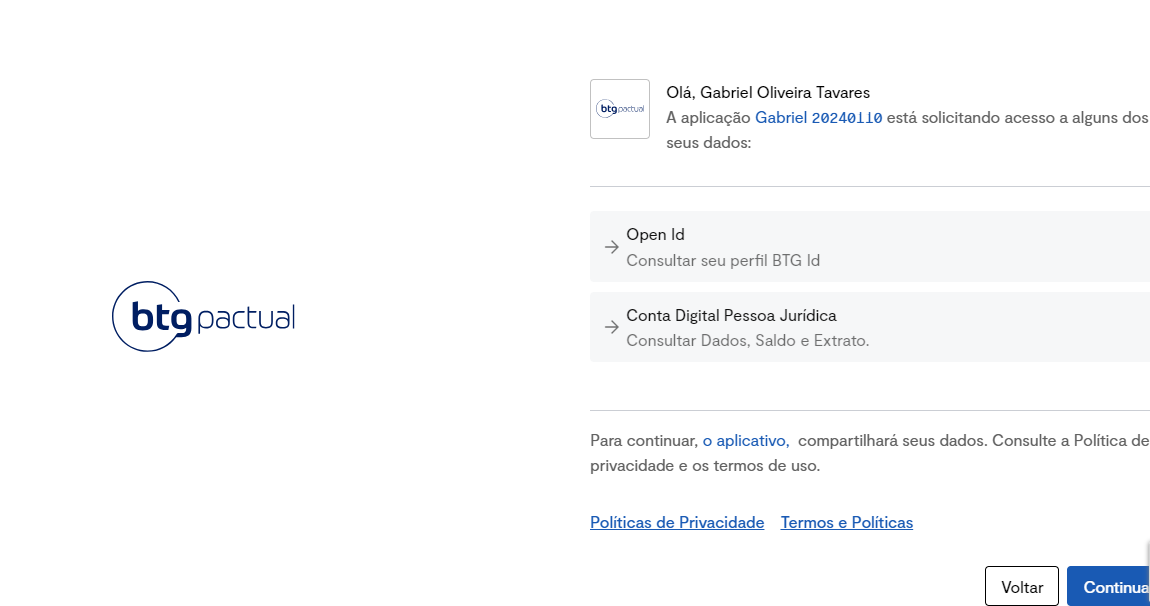
After confirming, you will be taken to your redirect_uri, which in our case will be a page not found, but when we look at the browser URL:

We have our Authorization Code (everything between "?code=" and "&"). We copy it and can then start the Access Token flow.
Consent
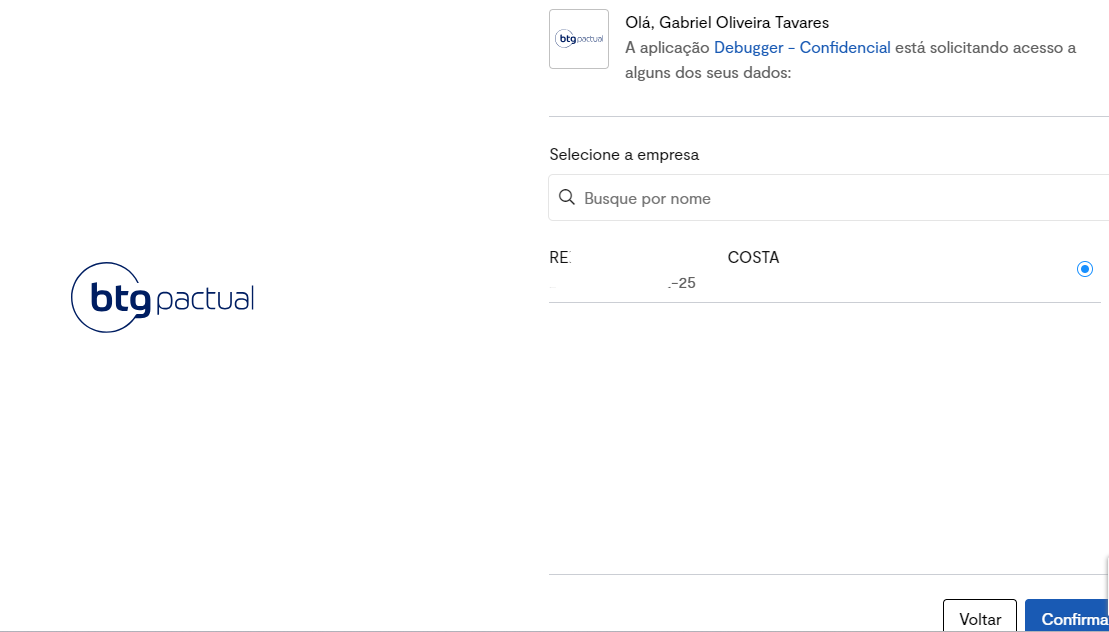
Consent is a point where the sandbox environment differs from the production environment. In sandbox, since the environment has no connection to real databases, you will only have the BTG Pactual Empresas sandbox company to select.
In the production environment, on the other hand, it is possible and required to issue consent for a real company.
A list of companies where you are a user will appear right after confirming the scopes. In this list you can select only one company. Therefore, the relationship between token and company is one-to-one. If you have more than one company you want to operate, you must manage one token per company.
Access Token
We obtain the Access Token by making a POST request sending the Authorization Code and some of our credentials as described on our page about the flow:

After that, we need to configure the authentication protocol:

We use the basic authentication scheme:
- Username is our client_id configured in the environment
- Password is our Secret that lives in the Developer Area
If you choose to do it programmatically, you need to base64-encode a string consisting of client_id:client_secret.
Now, we configure the request body:

It is extremely important that it is sent as form-urlencoded!
The code field is where we put our Authorization code obtained earlier, and the grant_type field we don't need to worry about — just set it as the documentation shows.
Just send the request and we will get back our Access Token:
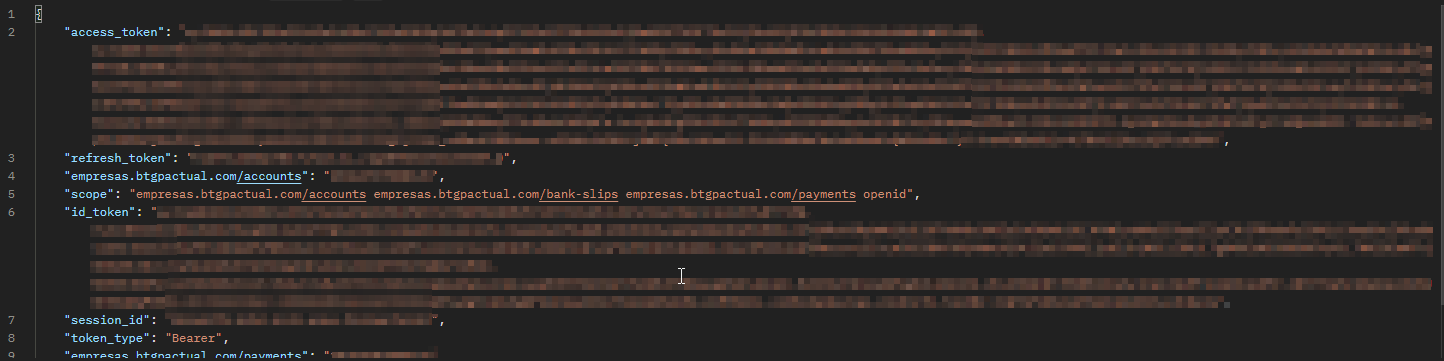
And that, developer, is how we obtain the Access Token through the Authorization Code Flow!
Postman
We have a Postman collection with all the requests most used and requested by our customers. To find it, just visit our Postman Collections page.